Browse by Topic

Find help for the area you need

🚀

Getting Started

Set up your Lookio workspace and start managing your team.

  • Create your account and workspace
  • Invite team members
  • Import employees (CSV or Business Central)
  • Configure company settings
  • Set up departments and locations
👥

People Management

Manage your employee directory and organizational structure.

  • Add and edit employee profiles
  • Custom fields for your data
  • Manager hierarchy and org chart
  • Emergency contacts
  • Employee self-service portal
📅

Time Off

Configure PTO policies, approvals, and team calendars.

  • Create time-off policies
  • Set accrual rules and carryover
  • Approval workflows
  • Team calendar view
  • Balance tracking and adjustments
📊

Performance

Run review cycles, track goals, and collect feedback.

  • Create review cycles
  • Goal setting with approval
  • Self and manager assessments
  • Manager sign-off workflow
  • 1-on-1 meeting scheduling
💼

Hiring & Onboarding

Recruit candidates and onboard new hires seamlessly.

  • Post job vacancies
  • Candidate self-service portal
  • 10-stage hiring pipeline
  • One-click hire to employee
  • Onboarding task checklists
🔒

Security & Admin

SSO, roles, permissions, and audit logging.

  • Configure SSO (Entra ID / OIDC)
  • Role-based access control (RBAC)
  • Audit log and compliance
  • Storage and media management
  • API keys and integrations

Quick Start Guide

Get up and running in 4 simple steps

1

Sign Up

Create your workspace at lookio.com/signup. Choose your subdomain and plan.

2

Add Employees

Import from CSV, sync from Business Central, or add employees manually one by one.

3

Configure

Set up departments, time-off policies, custom fields, and invite your team.

4

Go Live

Employees log in via SSO or email OTP. Self-service is ready from day one.

Business Central Integration

Connect Lookio to Dynamics 365 Business Central

Setting Up the BC Extension

The Lookio extension includes a guided Setup Wizard that walks you through connecting BC to your Lookio workspace in about 5 minutes.

Step 1: Find the Setup Wizard

After installing the extension, go to Assisted Setup (search for it in BC). Find "Set up Lookio HR" under Connect with other systems.
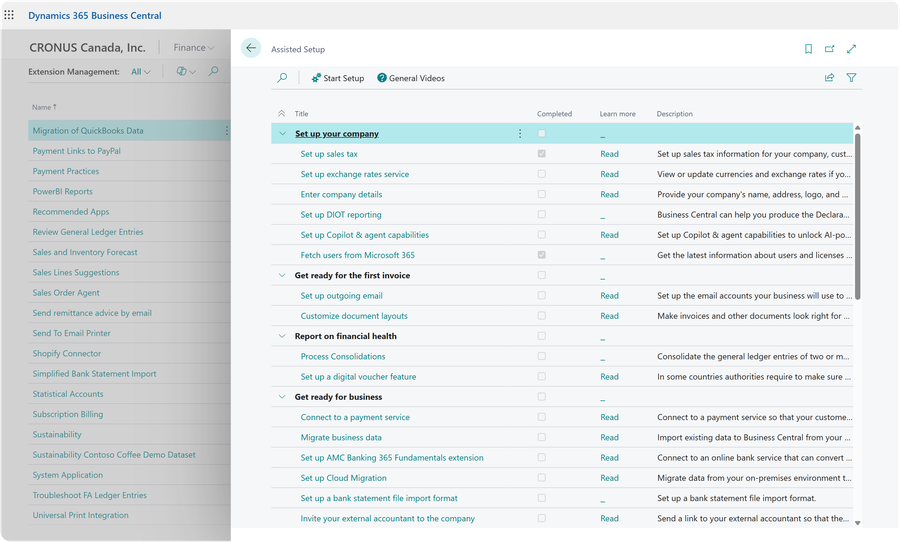
Assisted Setup showing Set up Lookio HR

Step 2: Create or Connect Your Account

If you don't have a Lookio account yet, click "Sign Up for Lookio" to create one. After signup, you'll receive an API Base URL and API Key — copy both and come back to the wizard.
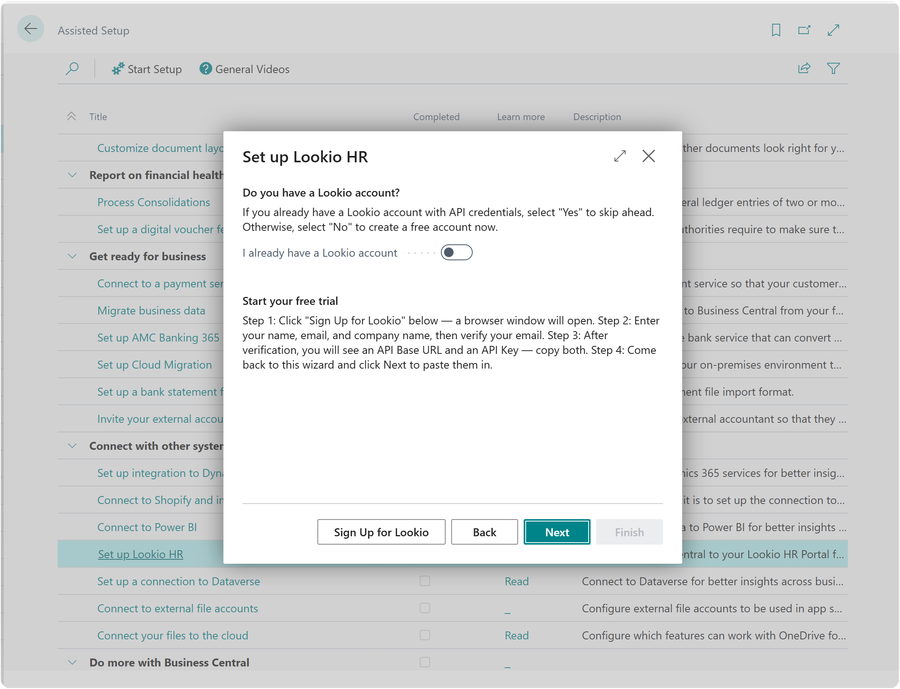
Account check step with Sign Up button

Step 3: Enter Your API Credentials

Paste your API Base URL (e.g., https://yourcompany.lookio.com) and API Key from your Lookio account.
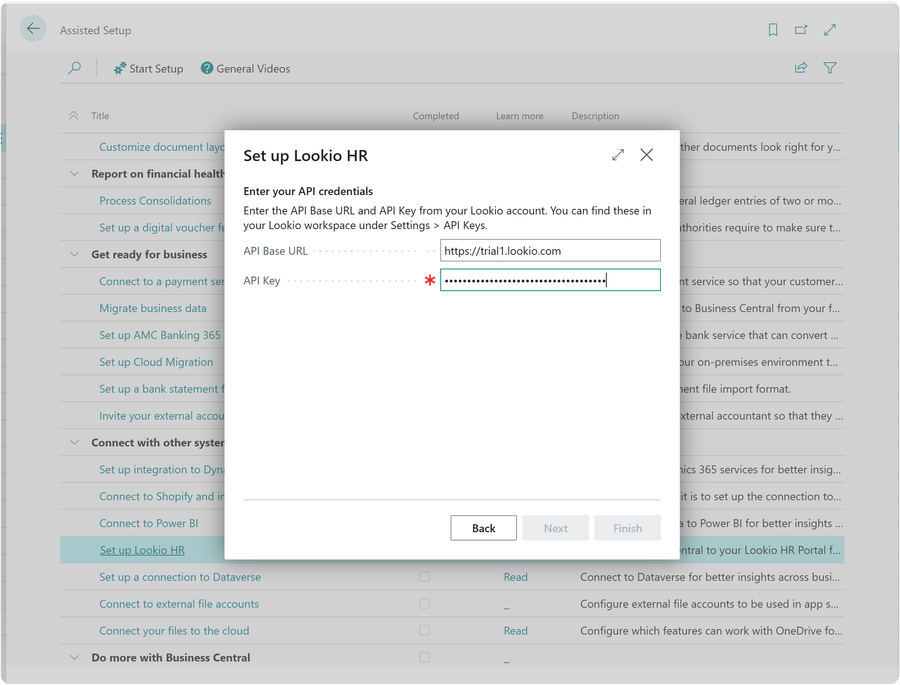
Credentials step with API fields

Step 4: Test the Connection

The wizard automatically tests the connection. If it succeeds, click Next to continue. If it fails, see Troubleshooting below.
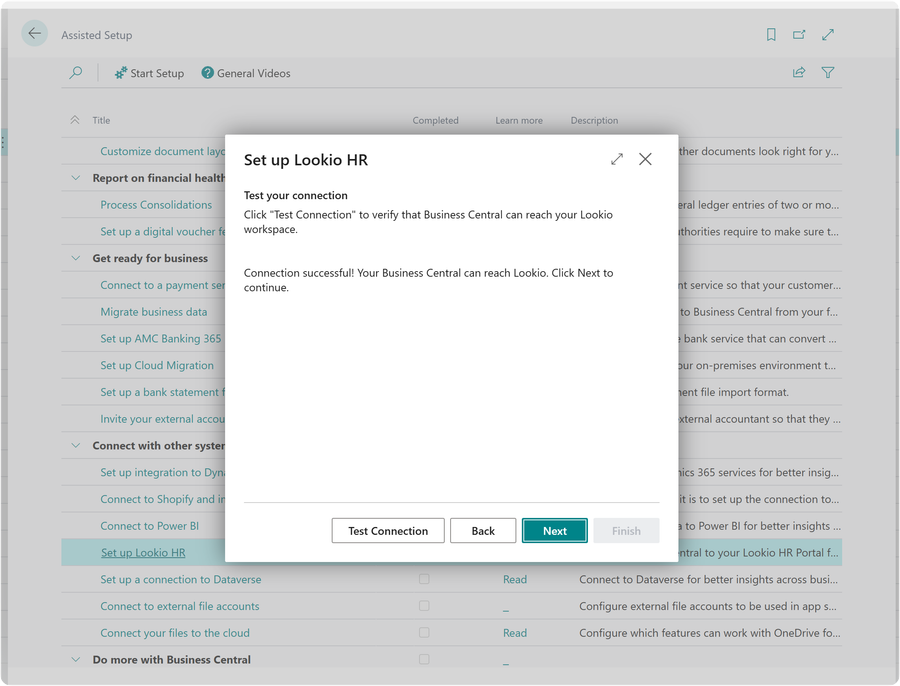
Connection test successful

Step 5: Finish Setup

Optionally enter an email to receive a confirmation, then click Finish. Search for "Lookio HR Setup" to sync employees and configure features.
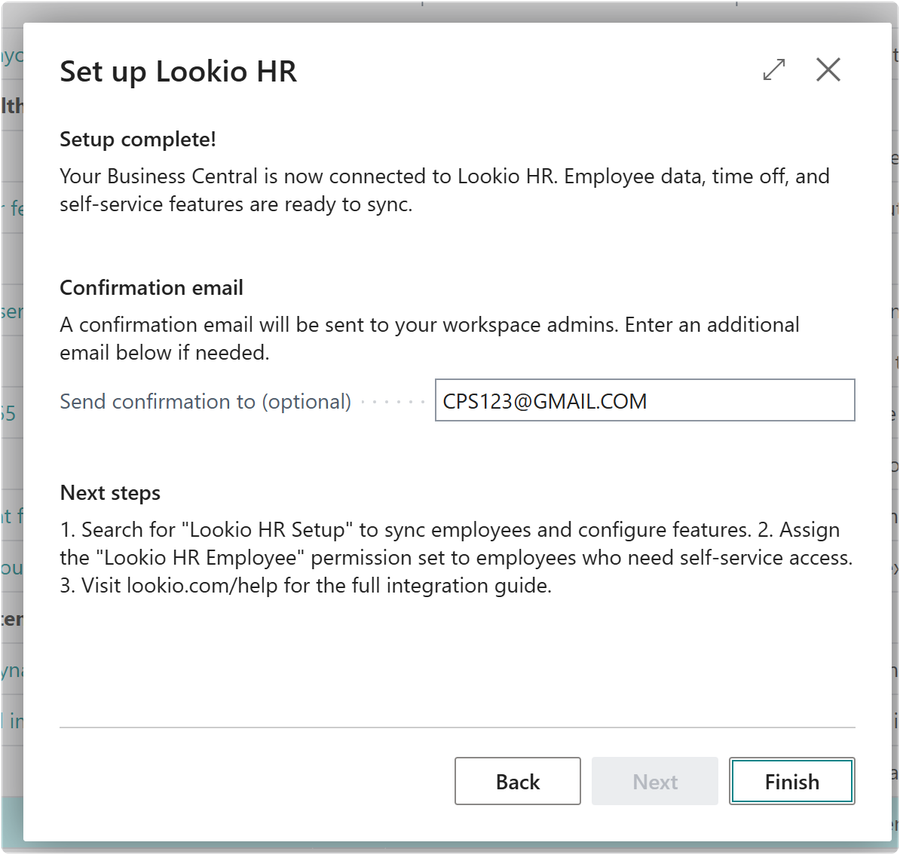
Finish step with email and next steps

Troubleshooting Connection Issues

If the "Test Connection" button in the BC Setup Wizard fails, check the following:

IssueSolution
Service is starting upLookio runs on Azure App Service, which may take 60-90 seconds to start after a period of inactivity. Wait a minute and click "Test Connection" again.
Incorrect API Base URLThe URL must be https://yourcompany.lookio.com with no trailing slash and no /api suffix. Example: https://acme.lookio.com
Invalid API KeyThe API key is shown only once during signup. If you've lost it, sign in to your Lookio workspace, go to Settings > Integrations, and generate a new key.
Tenant not yet activeMake sure you completed email verification during signup. Your workspace must be active before the API will respond.
Network or firewallBusiness Central must be able to reach *.lookio.com over HTTPS (port 443). Check with your IT team if outbound traffic is restricted.
Extension permissionsWhen BC asks "The extension is making a request to an external service", select Allow Always and click OK.

What Syncs Between Lookio and BC

DataDirectionDetails
Employee profilesLookio → BCName, contact info, department, job title, manager, hire date, status
Benefits deductionsLookio → BCMedical, dental, vision, life insurance, HSA, FSA, 401(k), total
Time-off policiesLookio → BCPolicy names, types, accrual rates, carryover limits
Time-off balancesLookio → BCCurrent balance and pending requests per employee
Time-off requestsBC → LookioEmployees can submit requests from within BC
Profile updatesBC → LookioSelf-service edits (address, phone, personal email) sync back
Termination statusLookio → BCTermination date sets employee status to Terminated in BC

BC Extension Features

FeatureDescription
My ProfileEmployees view their profile and edit contact info from within BC
My Time OffSubmit time-off requests with policy selection, date range, and notes
Time Off BalancesFactBox showing current balances and pending days per policy
Emergency ContactsView and manage emergency contacts directly in BC
Open in LookioOne-click link to the full employee profile in the Lookio web app
Test ConnectionVerify API connectivity from the setup page
Auto-SyncConfigurable sync interval (1-24 hours) with last sync status tracking

Identity Provisioning (Entra ID)

Automatic account creation and deactivation

On Hire

When a candidate is hired in Lookio with "Create Entra Account" enabled, Lookio automatically:

  • Creates a Microsoft Entra ID user account
  • Assigns a temporary password
  • Provisions email, apps, and licenses
  • Links the Entra ID to the employee record

On Termination

When an employee is terminated (immediate or scheduled), Lookio automatically:

  • Disables the Entra ID account
  • Removes assigned licenses
  • Revokes access to all apps
  • Logs the action for SOC 2 audit trail

Frequently Asked Questions

Do I need Business Central to use Lookio?

No. Lookio works as a standalone HR platform. The Business Central integration is optional and available on all plans. You can also use Lookio with just Entra ID for identity provisioning, or completely standalone.

How long does setup take?

Most companies are up and running within an hour. Sign up, import your employees, configure your settings, and invite your team. The BC extension takes about 5 minutes to install and configure.

Is my data secure?

Yes. Lookio is SOC 2 Type II compliant with AES-256 encryption at rest, TLS 1.2+ in transit, row-level tenant isolation, RBAC with 38 permission codes, and a full audit trail. See our Security page for details.

Can employees use Lookio from within Business Central?

Yes. The BC extension includes a self-service profile page, time-off request submission, balance viewing, and emergency contact management — all from within the BC interface.

What happens to my data if I cancel?

Your data is retained for 30 days after cancellation to allow for export. After that, it is permanently deleted. You can request early deletion at any time by contacting privacy@lookio.com.

Do you support languages other than English?

Yes. Lookio supports English and French with full translations across all pages. Additional languages can be added on request.

Need More Help?

Our team is here to assist you.

Contact Support Request a Demo

Email: support@lookio.com  ·  Sales: sales@lookio.com  ·  Security: security@lookio.com